
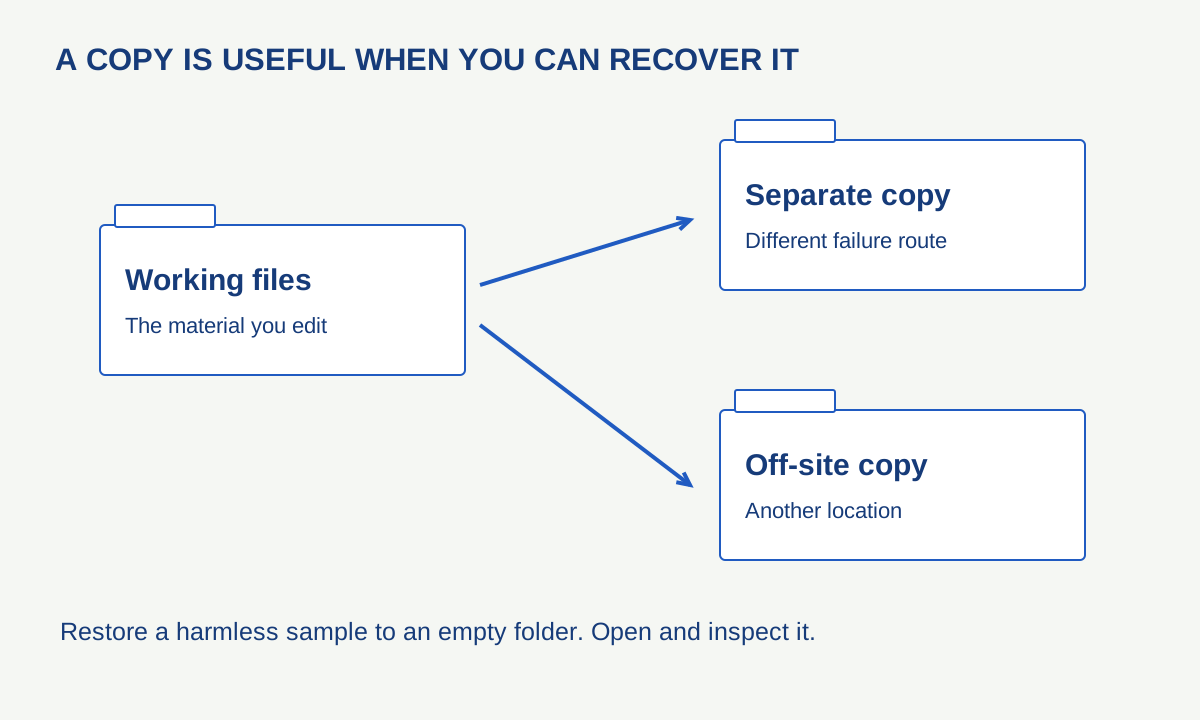
A folder called “Backup” can be reassuring without protecting anything. If it sits on the same drive as the only working copy, a drive failure may remove both. If it mirrors every change immediately, an accidental deletion may be mirrored too. The useful question is not whether copying happened, but what you could recover after a specific failure.
A small, verified arrangement is better than an elaborate plan nobody understands. This guide starts with personal documents and photographs, then builds a safe recovery exercise. It does not require replacing your computer or entrusting every file to a new service.
Inventory the things that matter
Write down where important material actually lives: documents on a laptop, photographs on a phone, a project folder on an external drive, and files held only inside an app. Include work stored outside the default Documents folder. The folder names a backup tool displays may not cover every location you use.
Separate irreplaceable work from things that can be downloaded again. This is a priority decision, not permission to delete anything. A ten-minute inventory helps you choose a manageable first backup and reveals material that needs an export before ordinary copying can protect it.
For each location, note roughly how often it changes and how much recent work you could tolerate losing. A folder edited daily needs a different routine from a finished collection that changes twice a year. Keep the description practical: “new photographs each weekend” is sufficient to start.
Think in independent failure routes
The familiar 3-2-1 approach means three copies in total, on two types of storage, with one elsewhere. CISA’s backup guidance uses that arrangement as a starting framework. Counting copies alone is not enough: ask whether one incident could reach all of them.
Two drives kept in the same bag share a theft risk. A permanently connected writable copy may be exposed to the same malicious software as the computer. An online copy may depend on account access. These examples do not mean one option is useless; they explain why different copies should address different failures.
Choose storage you can manage, including its access and recovery requirements. If you encrypt a backup, keep the recovery information securely available outside the device it protects. A beautifully preserved encrypted archive is not recoverable if the only key vanished with the laptop.
Sync, versions and recovery are different capabilities
Synchronisation is designed to keep locations consistent. That can be convenient, but consistency may include an unwanted edit. Version history can help recover earlier states, subject to the service’s retention and account conditions. A separate backup can supply another route. Read what each tool actually retains rather than assigning all three jobs to a cloud icon.
Microsoft distinguishes several recovery tools in its Windows backup overview. File History keeps versions of personal files on a suitable external or network location; a recovery drive serves a different system-recovery purpose. The name of a feature is not enough to establish that your chosen documents are included.
For app-based work, export a representative project and reopen it. The export may preserve the finished appearance while losing editing information. Our guide to portable file formats explains why retaining both an editable original and a reading copy can be useful.
A safe first restore test
- Create a small folder containing a harmless text document and a copy of an ordinary photograph. Give it a clear test name.
- Run the intended backup and confirm the tool reports that this folder was included.
- Restore the test folder to a new, empty location. Do not overwrite the original.
- Open the restored document and image in their normal applications. Check the contents, not just the filenames.
- Record the date, backup location, restore method and any step you had to look up.
Next, repeat the procedure with a few representative real files, still restoring to a separate location. Include a file with a long name or a non-English character if those occur in your work. For a project with linked assets, check that it opens with its dependencies rather than only inspecting its main file.
This is an original rehearsal procedure, not a destructive failure simulation. There is no need to erase a drive, delete the only live copy or disconnect a working account to learn the basic restore path. Keep all source material intact while testing.
Decide what “successful” means
A completed job is one piece of evidence. Recoverable, usable files are another. For a simple document, opening it and reading the expected text may be enough for a small test. For a complex project, the checks should include linked images, fonts or other required components where applicable.
Write down anything the test did not cover. Restoring three files does not prove every file is intact, and a personal-file backup does not automatically restore operating-system settings. This distinction helps you expand the plan sensibly without pretending the first test solved everything.
Keep a short recovery note alongside a securely stored inventory: which tool was used, where copies are held and how to find the instructions. Do not put passwords into an ordinary shared document. Someone helping you later should be able to understand the route without receiving unnecessary access today.
Make the routine survive a busy month
Choose a schedule that matches the rate of change and check that the storage has room. If a drive must be connected manually, tie that task to an existing routine. If a service runs automatically, inspect its recent result occasionally; automation can fail quietly when a destination is unavailable or an account needs attention.
Repeat a small restore after changing software, moving the library or replacing storage. Keep older usable copies until the new arrangement has been checked. A backup earns trust through recoveries you have observed, not through the number of reassuring green symbols on a dashboard.