
OLPC TV

Technology for useful, everyday learning

Understand the tools. Make them useful.

Clear explanations for the technology you actually use. Start with practical ways to extend a computer’s useful life, protect your files and understand what connected tools can—and cannot—do.

An independent technology publication. No affiliation with the One Laptop per Child organisation is claimed.

Open tools

Choose file formats that can travel with your work

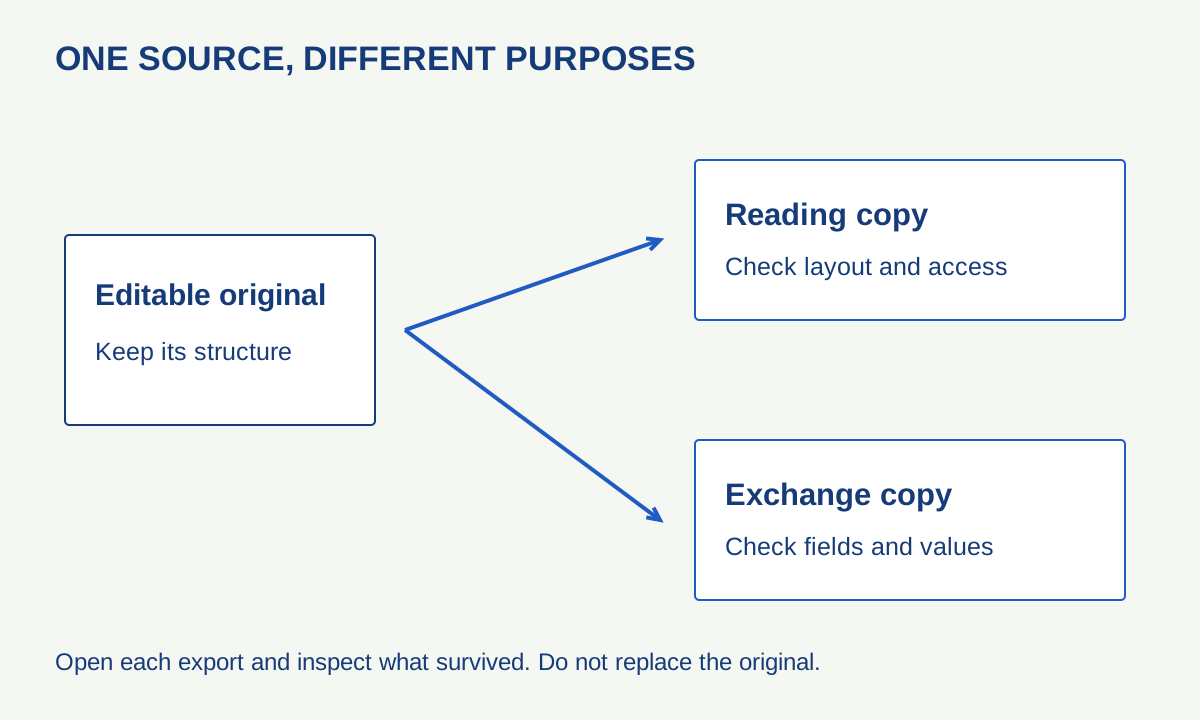
An editable original branches into a reading copy and a data-exchange copy, each requiring a different check.

A file can open successfully and still have lost something important. A spreadsheet may display numbers while its formulas are gone. A document may retain the words while the page layout changes. A project export may show a finished image but omit the layers needed to edit it.

Portability therefore begins with a purpose. Do you want another person to read the result, continue editing, analyse the data or preserve a record? One format rarely serves every purpose equally well. A small collection of deliberately chosen copies can be more dependable than insisting that one extension must do everything.

Keep a working original and an exchange copy

The working original preserves the application’s editing structure as well as it can. An exchange copy serves a particular audience or task. Keeping both avoids a common mistake: replacing the only editable version with a convenient export and discovering the loss later.

For example, a community reading list might have a spreadsheet master, a PDF for printing and a CSV for importing titles into another system. Those are three uses of the same information, not three interchangeable backups. Each copy needs a clear name and a date so that a reader can tell which version it represents.

This is an original example, not a recommendation to use a particular paid product. The principle works with many tools: retain the source, export deliberately and reopen the export using the route your recipient is likely to use.

What a CSV does—and what it does not

CSV stores records as text fields separated by delimiters. RFC 4180 documents a common comma-separated form, including quoted fields containing commas or line breaks. Real applications also offer variations, so an extension alone does not settle the delimiter, encoding or interpretation.

LibreOffice’s CSV guide makes a particularly useful limitation explicit: a standard export covers the current sheet’s data, not a complete multi-sheet workbook with formatting and formulas. Preserve the workbook if those features matter.

Imagine a three-column list: identifier, title and publication year. An identifier such as 00127 is a label, not a quantity. If the receiving application treats it as a number, the leading zeros can disappear. A date-like label can also be reinterpreted. Inspect the import preview and specify text for columns that should remain text.

Do not test with the easiest row alone. Include a comma inside a title, an accented name, a blank field and a leading-zero identifier. These ordinary edge cases reveal more than a demonstration containing only “Alice,Book,2020”. Use fictional, non-sensitive sample data when exploring unfamiliar tools.

A reading copy is a separate design task

A PDF can be useful when the reader needs a stable page-based presentation. That does not automatically make it accessible, searchable or suitable for editing. Inspect the exported result: can text be selected, are headings meaningful, do links work, and is the reading order sensible?

A scan of a page and a document exported with real text may look similar while behaving differently. If the reader needs to search or copy a passage, test that action explicitly. If the reader uses assistive technology, visual appearance is only one part of the check.

Keep the original document alongside the reading copy so that future corrections do not depend on reconstructing a layout from its final appearance. Name the files clearly rather than relying on a long chain of “final”, “final2” and “really-final”.

Build a tiny export test

Original portability test for a small collection
Item What to test Evidence of a problem
Text document Headings, accents, links and page breaks A heading becomes ordinary text or a link stops working
Spreadsheet All sheets, formulas, identifiers and dates Only one sheet appears or an identifier changes
Image project Dimensions, transparency and editable structure The export looks correct but needed layers are absent
Audio or video project Playback, duration and linked assets The project opens but cannot find a source file

Begin with a copy of the source. Export it, close the export and reopen it. If practical, try another application that claims to support the format. Compare a few deliberately chosen features rather than merely checking that no error message appears.

Document the application and export settings when the work is important. A future reader may need to know which delimiter was chosen or whether the copy contains values rather than formulas. A short readme file can preserve that context without depending on the original application.

Do not confuse openness with guaranteed longevity

A documented format can make interpretation easier, but files still need storage, understandable organisation and occasional checks. An unusual feature can also travel less reliably than basic text or a simple table even when both are supported in principle.

Avoid unnecessary conversion chains. Exporting through several programs can make it harder to identify where a change occurred. Keep the first original intact and compare each required output directly with it. When an export is incomplete, label the limitation rather than quietly treating it as an archival master.

For sensitive material, inspect comments, revision history, hidden sheets and metadata before sharing. A PDF or CSV is not automatically a privacy filter. Make a separate sharing copy and remove only what you intend to exclude, preserving the private working record.

Make the next handover easier

Package a small project with the editable source, the exchange copy and a short description of its contents. State which file is authoritative and what the other versions are for. If a recipient needs a different format, make that requirement explicit before a large conversion.

Finally, protect the package with a backup you have tested. A portable file that exists in only one place remains vulnerable to loss. Good handover and good preservation meet at the same point: another person, or your future self, can open the right material and understand what has survived.
Networks

A room-by-room method for diagnosing unreliable Wi-Fi

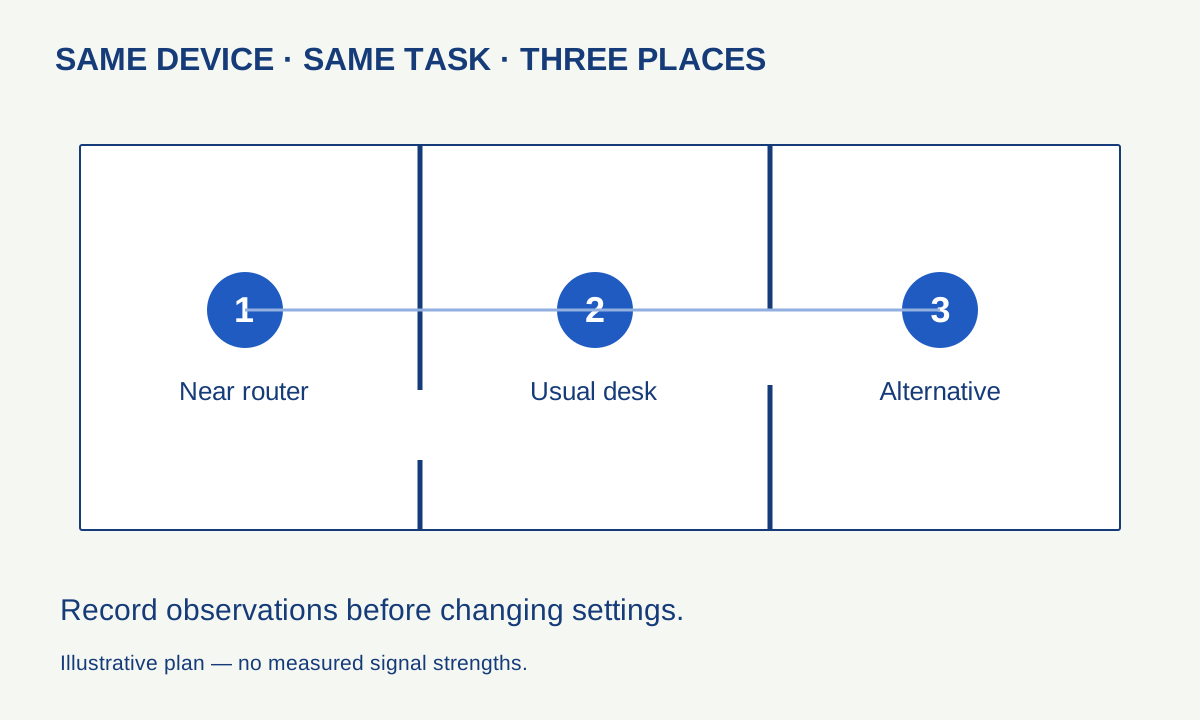
A fictional floorplan marks near-router, usual-desk and alternative test positions. Compare the same device and task; no signal values are claimed.

A full Wi-Fi symbol does not tell you whether a video call will remain stable. A weak symbol does not identify whether the router, the room or the internet connection is responsible. The useful starting point is a map of observations: which device, which place, which task and which time.

This method uses ordinary comparisons rather than specialised equipment. You can carry it out without changing passwords, resetting the network or buying an extender. Only alter equipment you administer, and agree any interruption with the people who depend on it.

Separate the local link from the internet

Wi-Fi connects a device to the local wireless network. The internet connection links that network to external services. A problem can occur in either place, and the same symptom—such as a frozen call—can result from different causes.

Imagine a laptop that works well beside the router but struggles in a back room. That pattern gives a reason to investigate the local wireless path. If several devices fail in several rooms at the same time, the shared internet link, router or service deserves more attention. Neither pattern is conclusive by itself; it tells you which comparison to make next.

Do not replace that reasoning with a single speed test. A test is a sample from a particular device and route at a particular moment. Keep it as one observation alongside the task that matters, such as a ten-minute call or opening a shared document.

Draw the smallest useful map

Sketch the router and three places where you actually use a device. Note substantial obstructions and whether the router is hidden in a cabinet or low behind furniture. You do not need to identify building materials with certainty or calculate radio propagation to document the layout.

Choose one device and one repeatable task. Try it close to the router, then in the usual working position, then in a nearby alternative position. Keep the task, device and approximate time as consistent as practical. Otherwise a comparison can accidentally become a test of different applications or different network demand.

An original record might read: “desk: call stuttered twice; doorway: no interruption observed; beside router: no interruption observed”. That is more useful than “the whole house has terrible Wi-Fi”. It also leaves room for a later test to disagree.

Use a second device carefully

Repeat the same task in the problem location on another device, if one is already available. If only one device struggles, inspect its supported updates and connection settings before changing the whole network. If both show the same pattern, placement or shared infrastructure becomes a stronger candidate.

Remember that devices have different radios, software and antenna arrangements. A phone working where a laptop does not is evidence of a difference, not proof that either product is faulty. Record the model and software version if you need to ask for support later.

For a temporary wired comparison, use a supported connection and a safe cable route. If the same device and task become reliable on Ethernet, you have narrowed the investigation. If they do not, there is little reason to keep changing wireless channels at random.

Make placement a controlled experiment

Where the installation permits it, compare the existing router position with a more open, stable location. Follow the manufacturer’s mounting, ventilation and cable guidance. Do not stretch a cable across a doorway or move equipment attached to a fixed service installation without understanding the limits.

Repeat the same three-location test after the move. Keep the old position documented so that you can reverse the change. If the improvement is only marginal or one important room becomes worse, retain that trade-off in the notes rather than reporting a universal success.

An additional access point can be useful when a layout genuinely needs one, but its connection back to the network matters too. A device placed inside the same poor-coverage area does not automatically create a strong route upstream. Diagnose the route before choosing equipment.

Settings: document first, change second

Use your router manufacturer’s current instructions. Apple’s recommended router settings provide a clearly documented example: keep firmware current, preserve a backup before changes, use suitable modern security and configure supported bands consistently. The article is written for Apple-device compatibility, so treat it as a reference with a stated scope.

Different bands, channel widths and device capabilities introduce trade-offs. A higher number on a settings page is not automatically better in every environment. Start with the manufacturer’s supported automatic configuration unless you have a specific, measured reason to change it.

Do not disable encryption, open remote administration or install unofficial firmware merely because an online comment promises more speed. These actions are unnecessary for the comparison exercise and can introduce problems unrelated to the original symptom.

Test busy conditions as well as quiet ones

A network that behaves well when one person is home may behave differently during simultaneous calls, streams and large transfers. Repeat the observation during ordinary use without deliberately disrupting someone else’s work. Note the time and activity you know about; do not claim knowledge of every connected device.

For a planned test, pause only a nonessential transfer that you control and compare again. If the symptom changes, repeat once to check whether the relationship is reproducible. The goal is to identify a contributing condition, not to declare a household member responsible for every problem.

A useful stopping point

At the end, you should have a short map, several observations and a narrower question. “Only this laptop fails in two locations” calls for a different next step from “every device loses internet while the router’s connection light changes”. Send that evidence to the appropriate support team if necessary.

Keep configuration changes separate from the observation log, including the previous value and the result. If you are preserving that record or exporting a router configuration, store it privately: it can contain sensitive network information. Our backup guide explains how to keep an important recovery copy usable without assuming that copying alone proves success.

Files

Build a backup you can actually restore

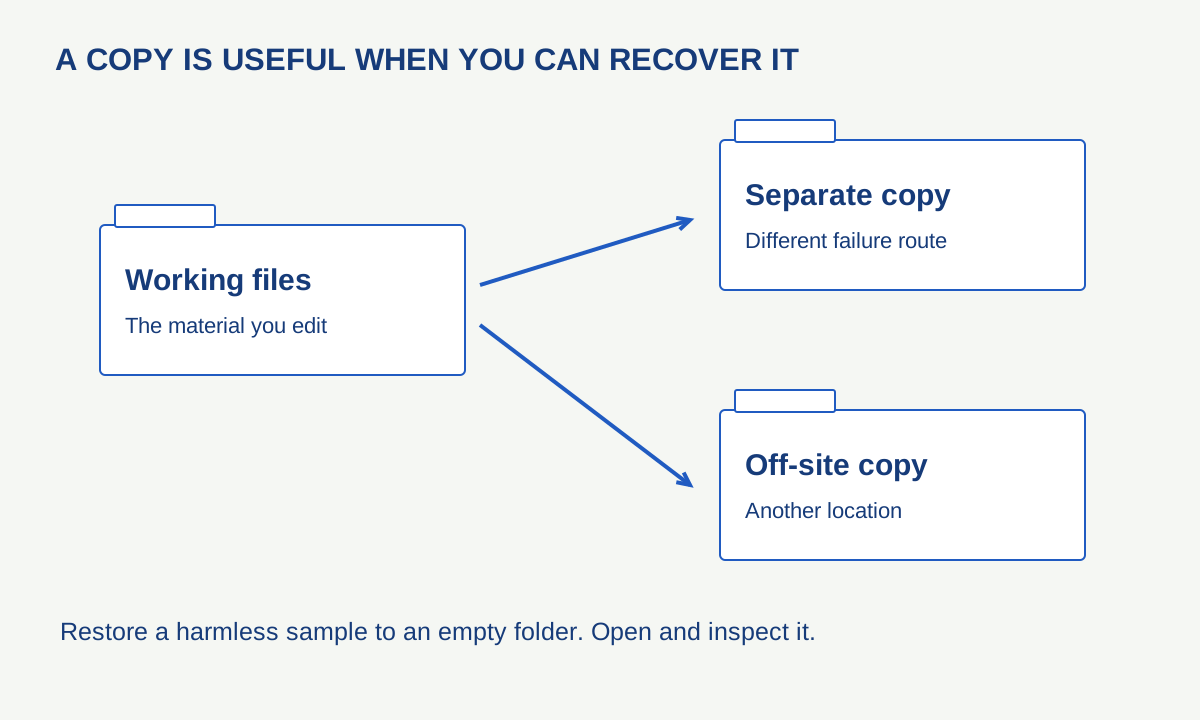
Working files connect to separate and off-site copies. A restore test opens a harmless sample in a new location.

A folder called “Backup” can be reassuring without protecting anything. If it sits on the same drive as the only working copy, a drive failure may remove both. If it mirrors every change immediately, an accidental deletion may be mirrored too. The useful question is not whether copying happened, but what you could recover after a specific failure.

A small, verified arrangement is better than an elaborate plan nobody understands. This guide starts with personal documents and photographs, then builds a safe recovery exercise. It does not require replacing your computer or entrusting every file to a new service.

Inventory the things that matter

Write down where important material actually lives: documents on a laptop, photographs on a phone, a project folder on an external drive, and files held only inside an app. Include work stored outside the default Documents folder. The folder names a backup tool displays may not cover every location you use.

Separate irreplaceable work from things that can be downloaded again. This is a priority decision, not permission to delete anything. A ten-minute inventory helps you choose a manageable first backup and reveals material that needs an export before ordinary copying can protect it.

For each location, note roughly how often it changes and how much recent work you could tolerate losing. A folder edited daily needs a different routine from a finished collection that changes twice a year. Keep the description practical: “new photographs each weekend” is sufficient to start.

Think in independent failure routes

The familiar 3-2-1 approach means three copies in total, on two types of storage, with one elsewhere. CISA’s backup guidance uses that arrangement as a starting framework. Counting copies alone is not enough: ask whether one incident could reach all of them.

Two drives kept in the same bag share a theft risk. A permanently connected writable copy may be exposed to the same malicious software as the computer. An online copy may depend on account access. These examples do not mean one option is useless; they explain why different copies should address different failures.

Choose storage you can manage, including its access and recovery requirements. If you encrypt a backup, keep the recovery information securely available outside the device it protects. A beautifully preserved encrypted archive is not recoverable if the only key vanished with the laptop.

Sync, versions and recovery are different capabilities

Synchronisation is designed to keep locations consistent. That can be convenient, but consistency may include an unwanted edit. Version history can help recover earlier states, subject to the service’s retention and account conditions. A separate backup can supply another route. Read what each tool actually retains rather than assigning all three jobs to a cloud icon.

Microsoft distinguishes several recovery tools in its Windows backup overview. File History keeps versions of personal files on a suitable external or network location; a recovery drive serves a different system-recovery purpose. The name of a feature is not enough to establish that your chosen documents are included.

For app-based work, export a representative project and reopen it. The export may preserve the finished appearance while losing editing information. Our guide to portable file formats explains why retaining both an editable original and a reading copy can be useful.

A safe first restore test

  1. Create a small folder containing a harmless text document and a copy of an ordinary photograph. Give it a clear test name.
  2. Run the intended backup and confirm the tool reports that this folder was included.
  3. Restore the test folder to a new, empty location. Do not overwrite the original.
  4. Open the restored document and image in their normal applications. Check the contents, not just the filenames.
  5. Record the date, backup location, restore method and any step you had to look up.

Next, repeat the procedure with a few representative real files, still restoring to a separate location. Include a file with a long name or a non-English character if those occur in your work. For a project with linked assets, check that it opens with its dependencies rather than only inspecting its main file.

This is an original rehearsal procedure, not a destructive failure simulation. There is no need to erase a drive, delete the only live copy or disconnect a working account to learn the basic restore path. Keep all source material intact while testing.

Decide what “successful” means

A completed job is one piece of evidence. Recoverable, usable files are another. For a simple document, opening it and reading the expected text may be enough for a small test. For a complex project, the checks should include linked images, fonts or other required components where applicable.

Write down anything the test did not cover. Restoring three files does not prove every file is intact, and a personal-file backup does not automatically restore operating-system settings. This distinction helps you expand the plan sensibly without pretending the first test solved everything.

Keep a short recovery note alongside a securely stored inventory: which tool was used, where copies are held and how to find the instructions. Do not put passwords into an ordinary shared document. Someone helping you later should be able to understand the route without receiving unnecessary access today.

Make the routine survive a busy month

Choose a schedule that matches the rate of change and check that the storage has room. If a drive must be connected manually, tie that task to an existing routine. If a service runs automatically, inspect its recent result occasionally; automation can fail quietly when a destination is unavailable or an account needs attention.

Repeat a small restore after changing software, moving the library or replacing storage. Keep older usable copies until the new arrangement has been checked. A backup earns trust through recoveries you have observed, not through the number of reassuring green symbols on a dashboard.