
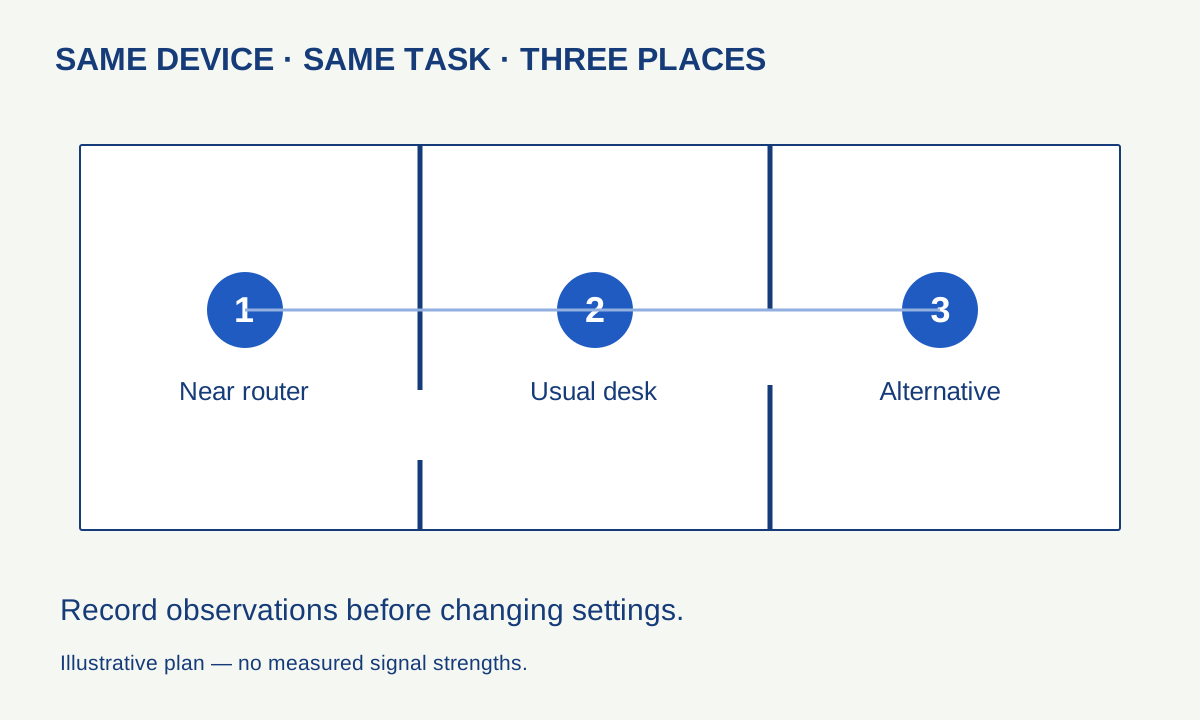
A full Wi-Fi symbol does not tell you whether a video call will remain stable. A weak symbol does not identify whether the router, the room or the internet connection is responsible. The useful starting point is a map of observations: which device, which place, which task and which time.
This method uses ordinary comparisons rather than specialised equipment. You can carry it out without changing passwords, resetting the network or buying an extender. Only alter equipment you administer, and agree any interruption with the people who depend on it.
Separate the local link from the internet
Wi-Fi connects a device to the local wireless network. The internet connection links that network to external services. A problem can occur in either place, and the same symptom—such as a frozen call—can result from different causes.
Imagine a laptop that works well beside the router but struggles in a back room. That pattern gives a reason to investigate the local wireless path. If several devices fail in several rooms at the same time, the shared internet link, router or service deserves more attention. Neither pattern is conclusive by itself; it tells you which comparison to make next.
Do not replace that reasoning with a single speed test. A test is a sample from a particular device and route at a particular moment. Keep it as one observation alongside the task that matters, such as a ten-minute call or opening a shared document.
Draw the smallest useful map
Sketch the router and three places where you actually use a device. Note substantial obstructions and whether the router is hidden in a cabinet or low behind furniture. You do not need to identify building materials with certainty or calculate radio propagation to document the layout.
Choose one device and one repeatable task. Try it close to the router, then in the usual working position, then in a nearby alternative position. Keep the task, device and approximate time as consistent as practical. Otherwise a comparison can accidentally become a test of different applications or different network demand.
An original record might read: “desk: call stuttered twice; doorway: no interruption observed; beside router: no interruption observed”. That is more useful than “the whole house has terrible Wi-Fi”. It also leaves room for a later test to disagree.
Use a second device carefully
Repeat the same task in the problem location on another device, if one is already available. If only one device struggles, inspect its supported updates and connection settings before changing the whole network. If both show the same pattern, placement or shared infrastructure becomes a stronger candidate.
Remember that devices have different radios, software and antenna arrangements. A phone working where a laptop does not is evidence of a difference, not proof that either product is faulty. Record the model and software version if you need to ask for support later.
For a temporary wired comparison, use a supported connection and a safe cable route. If the same device and task become reliable on Ethernet, you have narrowed the investigation. If they do not, there is little reason to keep changing wireless channels at random.
Make placement a controlled experiment
Where the installation permits it, compare the existing router position with a more open, stable location. Follow the manufacturer’s mounting, ventilation and cable guidance. Do not stretch a cable across a doorway or move equipment attached to a fixed service installation without understanding the limits.
Repeat the same three-location test after the move. Keep the old position documented so that you can reverse the change. If the improvement is only marginal or one important room becomes worse, retain that trade-off in the notes rather than reporting a universal success.
An additional access point can be useful when a layout genuinely needs one, but its connection back to the network matters too. A device placed inside the same poor-coverage area does not automatically create a strong route upstream. Diagnose the route before choosing equipment.
Settings: document first, change second
Use your router manufacturer’s current instructions. Apple’s recommended router settings provide a clearly documented example: keep firmware current, preserve a backup before changes, use suitable modern security and configure supported bands consistently. The article is written for Apple-device compatibility, so treat it as a reference with a stated scope.
Different bands, channel widths and device capabilities introduce trade-offs. A higher number on a settings page is not automatically better in every environment. Start with the manufacturer’s supported automatic configuration unless you have a specific, measured reason to change it.
Do not disable encryption, open remote administration or install unofficial firmware merely because an online comment promises more speed. These actions are unnecessary for the comparison exercise and can introduce problems unrelated to the original symptom.
Test busy conditions as well as quiet ones
A network that behaves well when one person is home may behave differently during simultaneous calls, streams and large transfers. Repeat the observation during ordinary use without deliberately disrupting someone else’s work. Note the time and activity you know about; do not claim knowledge of every connected device.
For a planned test, pause only a nonessential transfer that you control and compare again. If the symptom changes, repeat once to check whether the relationship is reproducible. The goal is to identify a contributing condition, not to declare a household member responsible for every problem.
A useful stopping point
At the end, you should have a short map, several observations and a narrower question. “Only this laptop fails in two locations” calls for a different next step from “every device loses internet while the router’s connection light changes”. Send that evidence to the appropriate support team if necessary.
Keep configuration changes separate from the observation log, including the previous value and the result. If you are preserving that record or exporting a router configuration, store it privately: it can contain sensitive network information. Our backup guide explains how to keep an important recovery copy usable without assuming that copying alone proves success.